Media production platform – share.dma.swiss
The media production platform share.dma.swiss is the central platform when you work together with colleagues, external partners, or service providers on video, audio, graphics, and document projects. It is part of the «Digital Asset Management DAM» solution package and provides you with the following core functions:
- Data repository – you can upload any file formats up to 500 GB, place them in folders, and edit them collaboratively.
- Secure sharing – you can share folders or individual files internally or externally; links can be protected with a password, an expiration date, or a download lock.
You can order the media production platform for your team here or contact support@dma.swiss directly if you have any questions.
1. How do I register?
- Register at https://share.dma.swiss/apps/registration/ with your official email address.
- You will receive an email with a confirmation link that you need to click.
- Choose a username that is recognizable to everyone and select a strong password (≥ 10 characters, uppercase/lowercase letters, number, special character).
- The OE platform administrator registers your email address with support@dma.swiss ; activation will occur within one business day.
- In Settings, you can set your profile picture, enable two-factor authentication, and customize the design.
2. Forgot password – now what?
On the login page, choose “Forgot password,” enter your email address, open the link you receive in the email, and set a new password.
3. How do I create a project folder?
In the top left, click Files > + > New Folder to create a new project folder.
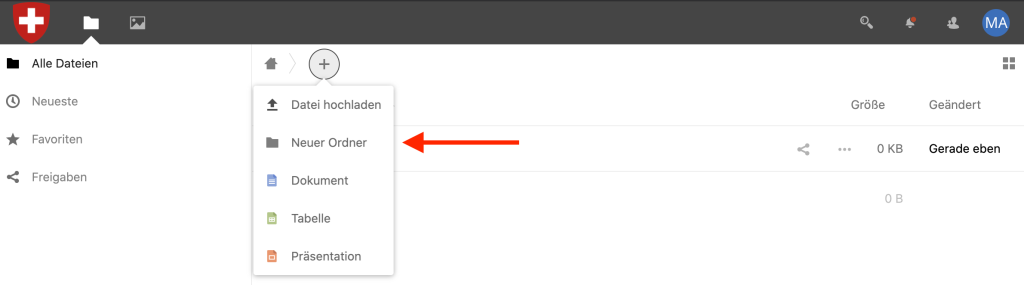
After ordering via FOITT, an official, person-independent folder is assigned to your organization/your team and configured according to your needs.
4. How do I upload or download files?
- Upload: open a folder, click the “+” icon, and select your file, or drag-and-drop files onto the upload area.
- Download: click on the three-dot menu to the right → Download ; multiple items will be bundled into a ZIP file.
5. How do I share content securely?
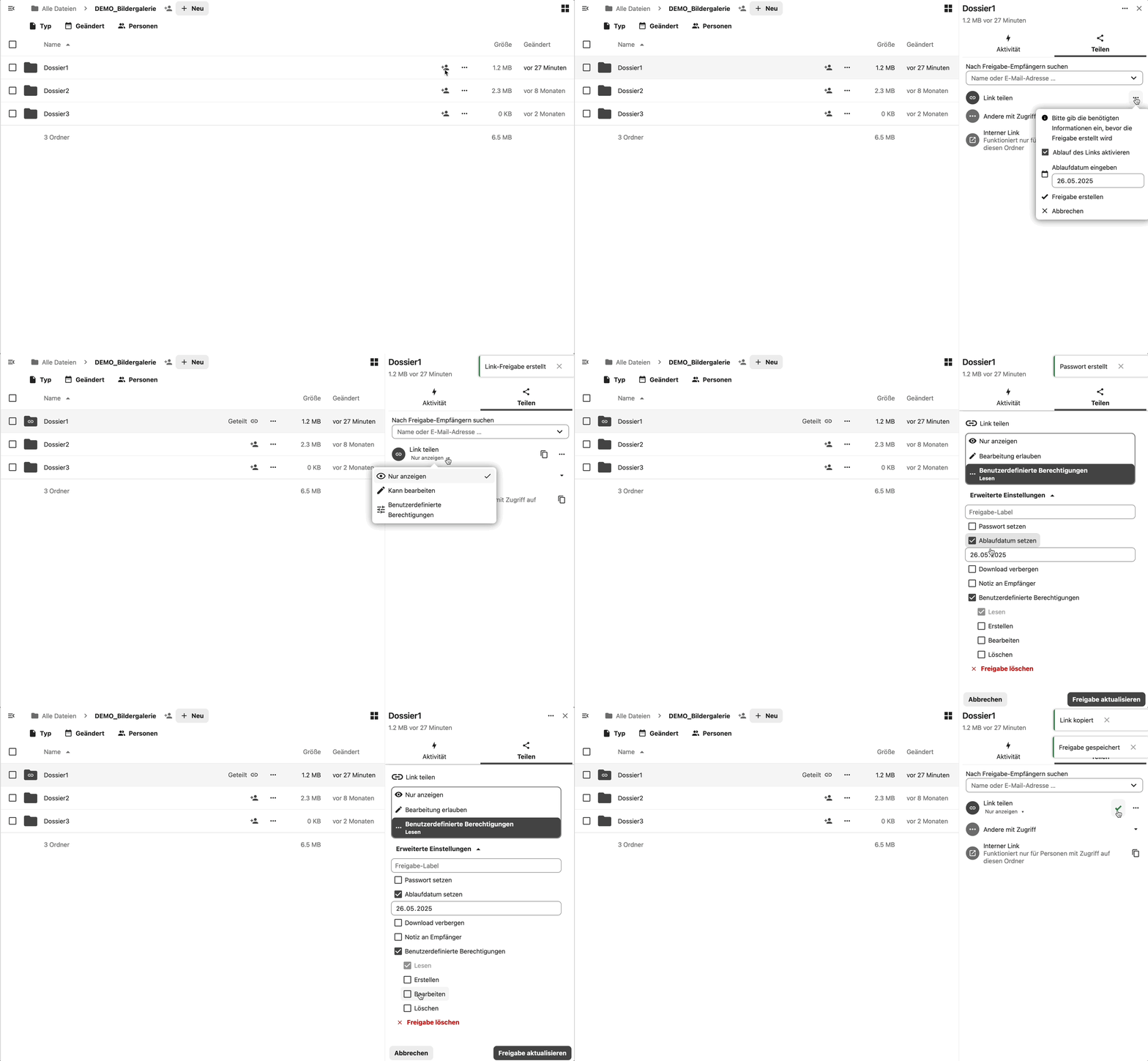
- Select a file or folder → click the sharing icon.
- Invite person – invite internal users with read or write permissions.
- Share link – create an external share link:
- Allow editing or view only
- Block download
- Set a password (communicate it separately via a secure channel, e.g. Threema)
- Define an expiration date (default is 14 days)
- All active shares can be found on the left under Shares > Shared with others.
6. How large can files be, and how much storage space does my unit have?
- Single file: max. 500 GB
- Standard storage per unit: 20 TB
- Expandable (paid) up to 200 TB (in the Digital Workplace portal, open the “Digital Asset Management” tile and order a storage extension).
7. Can I restore deleted files?
Yes, at the bottom left you will find the Trash. There you can select files or folders and click Restore.
8. What links exist and how can I recognize them?
External link: generated when you enable “Share link” in the sharing dialog. It always starts with /s/ – for example, https://share.dma.swiss/s/AbCdEfGh. You can additionally protect it with a password and expiration date; even people without an account can access it.
Internal link : you generate it in the sharing dialog under “Copy internal link.” It contains /f/ followed by a number – e.g., https://share.dma.swiss/f/12345. This link only works if the recipient already has access to the folder or file and is logged in.
Do not copy the browser URL! The address bar shows your personal path (e.g., /files/Username/…) or an ongoing session ID. Others will get an error because they are not working in your user context. Always use the sharing menu to generate a valid internal or external link.
9. Can I tag files with keywords?
Yes. You can assign keywords (tags) to files and folders and later filter them in a targeted way. The GIF below shows how to assign a tag to a single file.
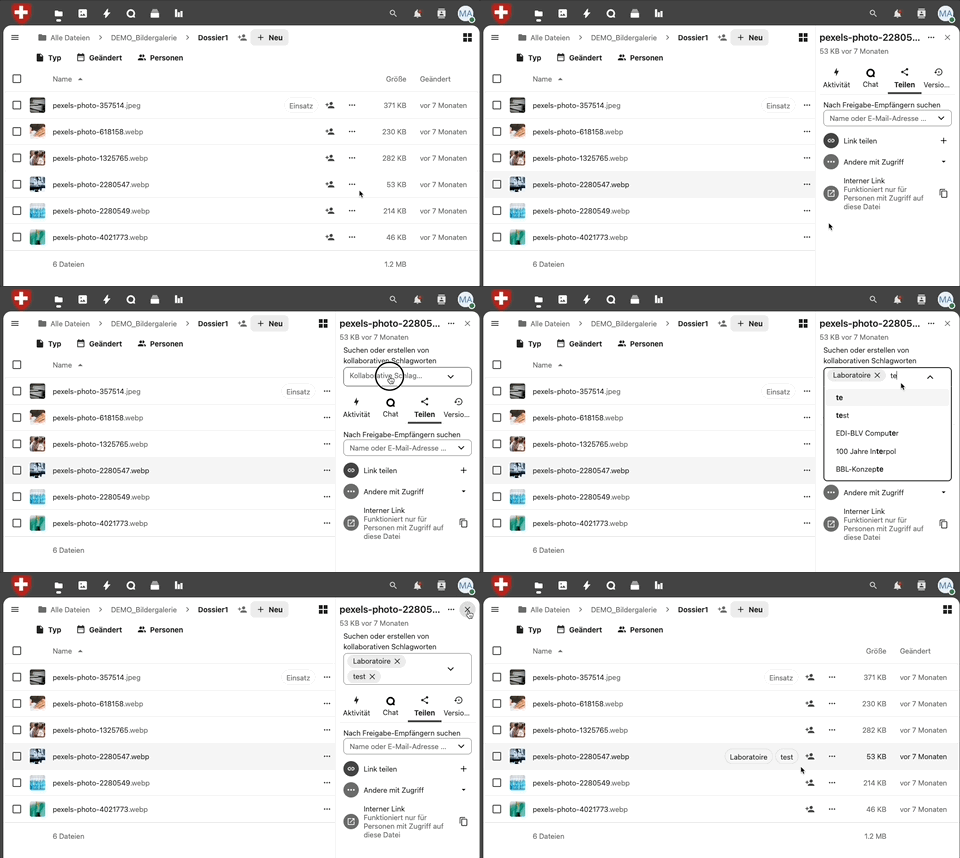
Tag multiple files at once:
Select files/folders → click the three-dot menu at the top → choose Tags → set one or more tags.
Filter by multiple tags at the same time:
In the left sidebar under Tags, you can select multiple tags and, for example, display only files with “Project XY” and “Approval pending”. Tags are collaborative: all users with access to the folder see the same tags and can reuse them.
For advanced management of your photos and videos with tags and metadata, we recommend the Photo Agency or the Video Agency.
10. Can we collaboratively edit Office documents?
Yes. Clicking on a Word, Excel, or PowerPoint file opens OnlyOffice in the browser. You see your colleagues’ live cursors, can leave comments, and finish editing with the button in the upper right.
11. Is there a mobile app?
Install the Nextcloud app (iOS/iPadOS / Android). On first launch, enter https://share.dma.swiss as the server and log in as you would on desktop. You can upload/download files on the go, make files available offline, or share links from your mobile device.
12. Where can I get help?
Feel free to contact the FOITT Service Desk at +41 58 465 88 88 with any questions.
13. Does this service cost anything?
For employees of the Defense Group (DDPS) and the Army, usage is free of charge. For all other organizations, the official FOITT prices are available on the intranet: DAM price list.
14. How do I transfer a folder to another person when closing my account?
- Go to Settings (top right) → Sharing.
- Under Files, click “Select file or folder to transfer”.
- Select the folder or file and confirm with Select.
- In the New owner field, enter the name of the intended person.
- Click Transfer.
The receiving person gets a notification and must accept the transfer. Only then will the folder, including all shares, be moved into their account.
15. Can we work together on a whiteboard?
Yes. Create a Whiteboard file via New > New whiteboard and share it with the people who need to collaborate. With the whiteboard feature you can sketch, note, and draw ideas in real time. The whiteboard is saved like a file in the chosen folder and can be opened and edited by all authorized users.
16. What is the best way to search for content?
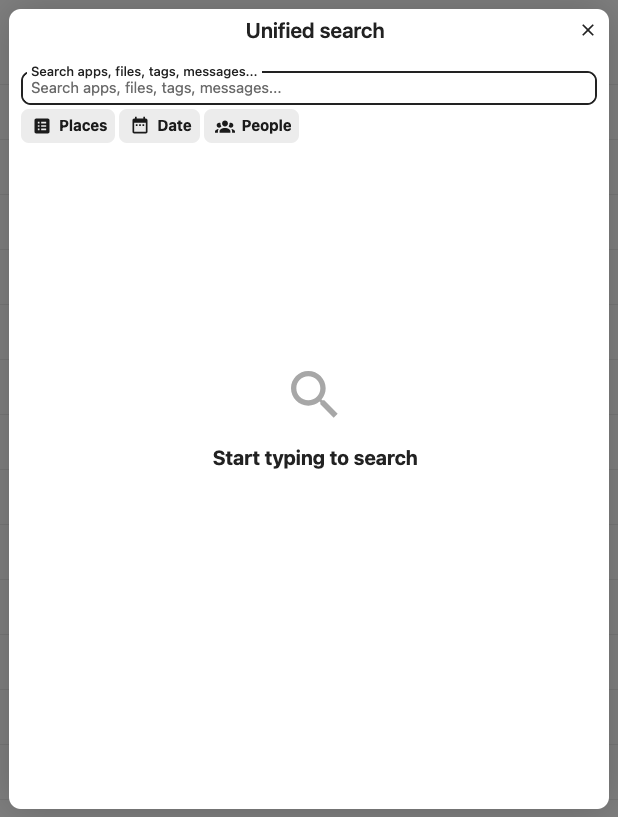
Use the Unified Search at the top right in SHARE DMA. It searches all files and folders you have access to.

You can search by file or folder name, keywords and content. PDF, Word and Excel documents are included in the full-text search, provided they are indexed.The search respects your permissions: only content you are authorised to access will be shown.