
Photo agency – www.mediathek.admin.ch
The Photo Agency is the module for presentation and organization of photos. High-quality image collections can be captured with metadata and presented in theme worlds. Photos in all common formats can be captured internally and publicly presented with the Landing Page option.
1. Who can use the Photo Agency and how do I register?
All organizational units (OU) of the central federal administration are entitled. You can order the Photo Agency module here and register yourself at https://www.mediathek.admin.ch (top right). After onboarding by the DMA media agency, one of the following roles will be assigned to you:
- Photo Viewer – Search, view, download
- Photo Editor – Additionally upload, maintain metadata, trigger control workflow
- Theme World Editor – Like Editor, plus create & maintain theme worlds
- Tenant Admin – All rights, plus user and keyword management, importer, work package assignment
The media management (backend) of the Photo Agency can be reached at https://www.mv.admin.ch.
2. How do I search for images?
In the Photo Agency as well as in the backend, you can search for desired images using concise keywords. Via Refine search you can refine the search results by keywords, formats, or color palette.
The search can be used more precisely with the following characters:
| Search with … | Description | Example |
|---|---|---|
| “ “ | Search for multiple words enclosed in quotation marks | “Soldier in service“ |
| + | The word with a plus sign must be present | +Soldier |
| − | The word with a minus sign must not be present | −service |
| Combination +, − and “ “ | Extends the must / must not contain to multiple words | +Soldier −“in service“ |
title: or description: | Search only in titles/descriptions | title:Soldier description:Soldier title:“Soldier in service“ description:“Videobotschaft CdA“ |
subject:, state:, creator: | Search only by keyword, publication state, and creator |
subject:Funktionen state:public creator:Schmidli |
Produziert: | Search only for images produced in a certain date range | Produziert:[2009-01-01 TO 2009-12-31] (Year-Month-Day format) |
3. What do I do with the pinboard?
The pinboard is your personal collection folder: you save finds from the search, sort and comment them; you can export the selection as a PDF.
4. How do I upload images?
How do I select good images?
The concept of a professional image assessment is based on several clear criteria to objectively assess the quality and message of a photo:
- Technical quality
Sharpness, exposure, contrast, color fidelity, and image noise. A technically high-quality photo is well-exposed, detailed, and shows no flaws that distract from the content. - Composition
Image construction, leading lines, shapes, colors, and placement of elements. Techniques like the golden ratio, rule of thirds, or leading lines direct the gaze and enhance emotional impact. - Subject and content
The subject must be clearly recognizable and tell a story or convey a mood (e.g., a smiling child with a dandelion as a symbol of joy). - Image aesthetics
Color design, play of light and shadow, image harmony, and overall impression. An aesthetically appealing photo immediately attracts attention. - Emotional and documentary value
Especially for editorial images, authentic emotions and high documentary content count (e.g., a person’s expressive gaze or the dynamism of a sporting event). - Originality and creativity
Unusual angles, creative perspectives, or innovative techniques make an image stand out from the crowd. - Relevance
For editorial purposes, the image must visually support the core message of the piece and fit thematically.
These criteria help evaluate photos purposefully and select the best shots for editorial or creative uses.
Uploading is handled through work packages. These guide you step by step through the entire process: uploading files, describing them, translating and publishing.
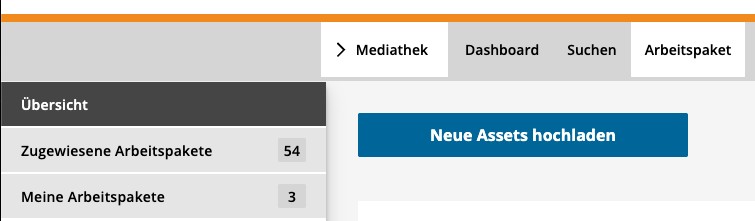
4.1. In the menu, open the Work package section and select Upload new assets.
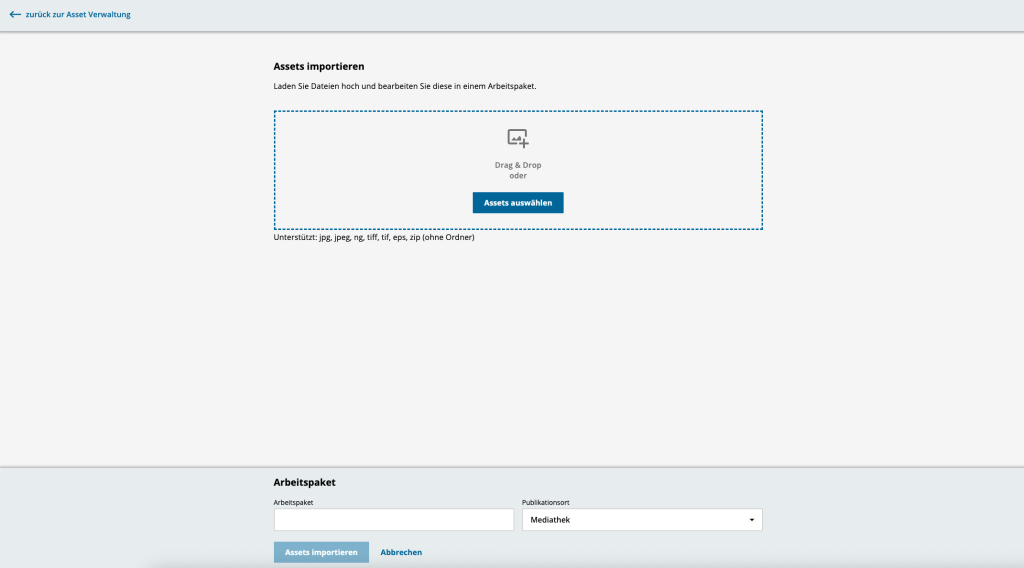
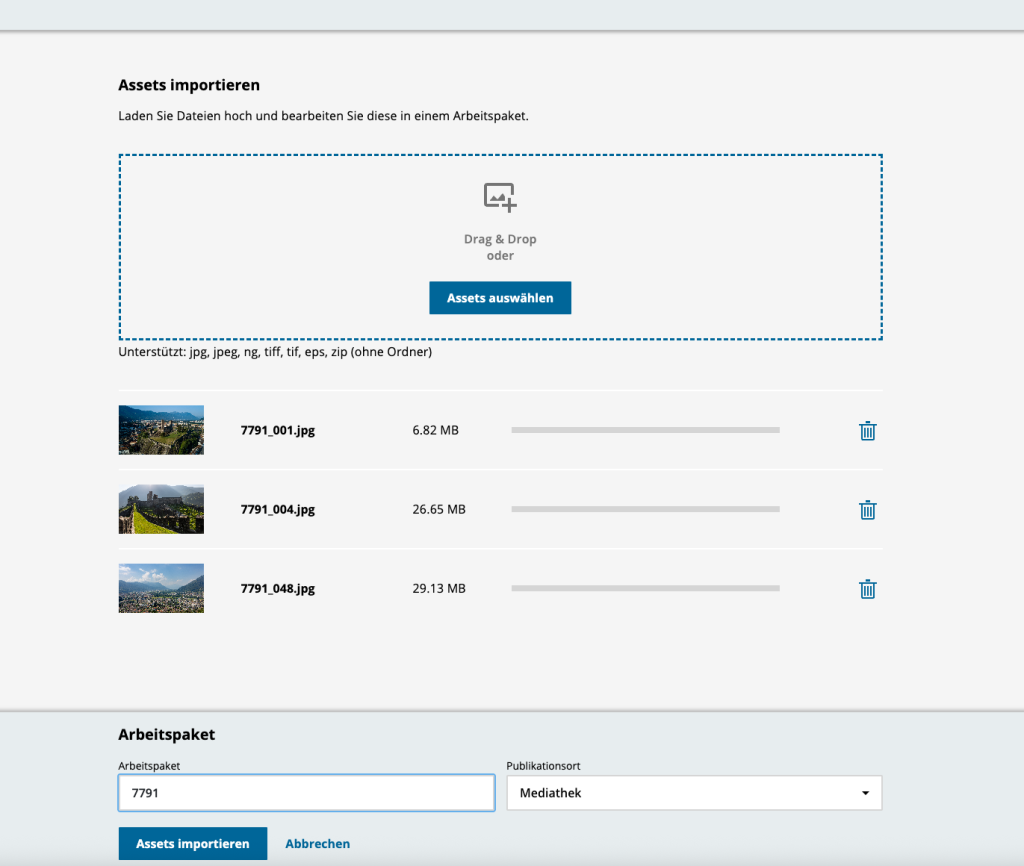
4.2. You are taken to the import view. Images can be uploaded via drag and drop or by using the Select assets button. Supported formats are JPG, PNG, TIFF, EPS and ZIP (without folders).
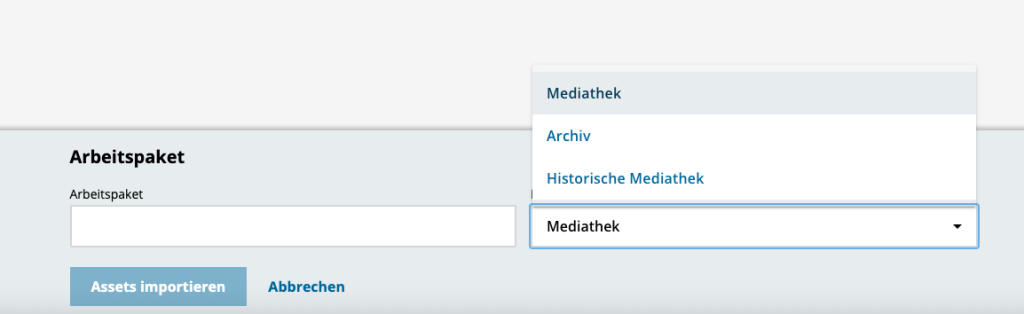
4.3. Before completing the upload, select the desired publication location:
• Media Library
• Archive
• Historical Media Library
The publication location determines on which platform the finalised assets will appear.
4.4. Assign a name or production number to clearly identify the work package, then start the process by clicking Import assets.
4.5. After the upload, the interface for describing individual assets opens. You can enter:
• Copyright
• Author
• Production date
• Producer / Client
• Title
• Description
• Keywords
• Location
• Licence
• Media format
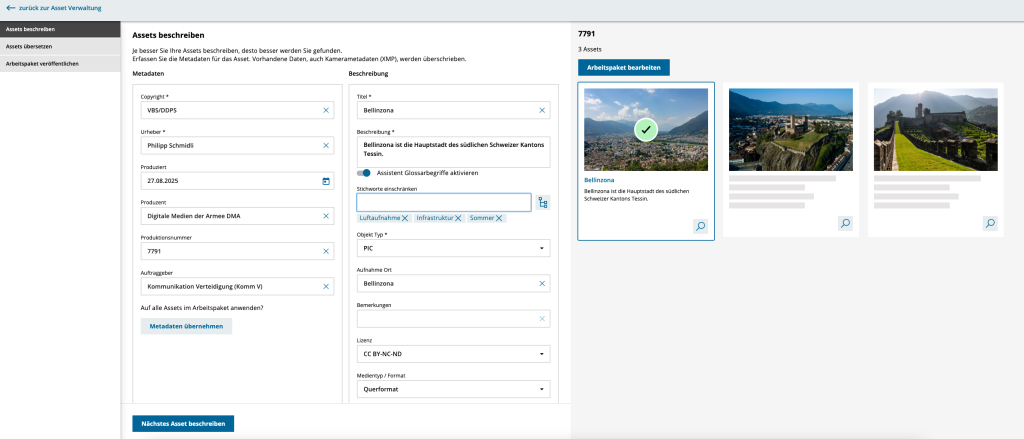
Using the Apply metadata button, the fields can be transferred to all images within the work package.
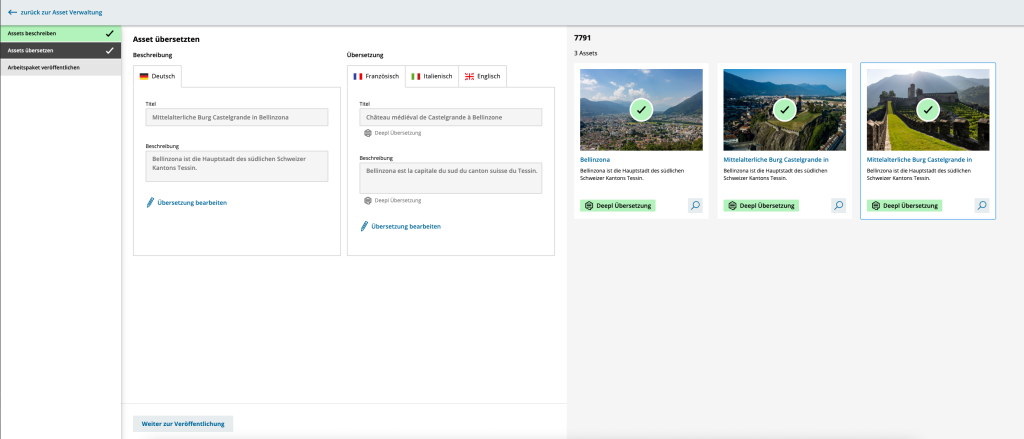
4.6. In the next step, the texts can be translated automatically or manually into French, Italian and English. The preview shows each asset with its current translation status.
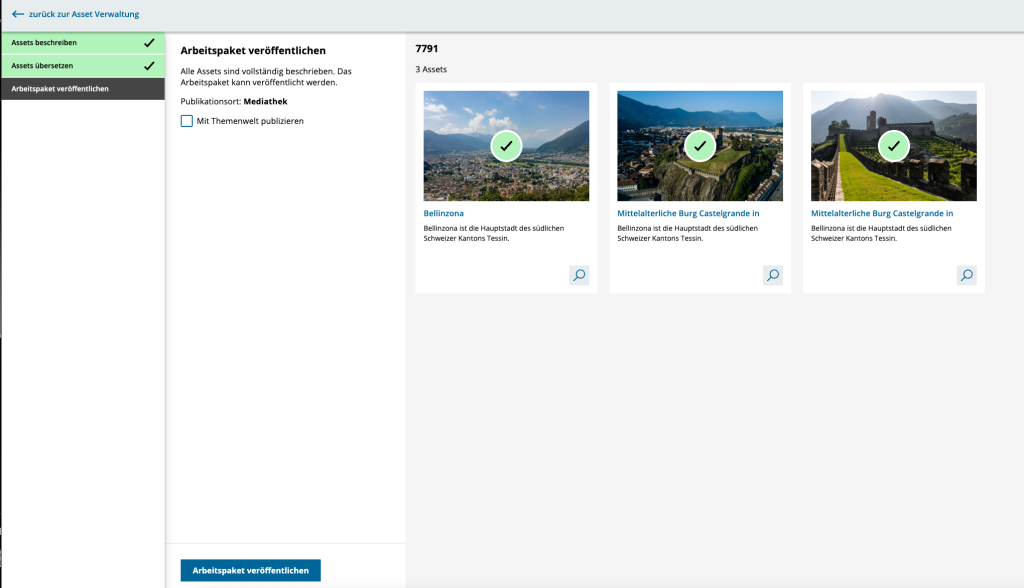
4.7. Once all images have been described and translated, the package can be published. The assets will then appear in the selected publication location and be available for search.
Optionally, the package can also be assigned to a theme.
5. How much storage do I have, and how large can files be?
Standard quota: 5 TB per OU; individual images can be up to 5 GB. If needed, you can expand storage in 1 TB increments up to 10 TB.
6. Which metadata are mandatory?
Per language at least title, description, a copyright/license entry. Other fields (location, era, photographer, keywords …) are optional but improve discoverability.
7. Does the Photo Agency support me with translation?
Yes, see section 4.6. – image descriptions can, among other things, be translated automatically using DeepL.
8. What is a work package?
A work package bundles your uploads. As soon as you have completed entering the metadata, you can publish the work package.
9. What are theme worlds for?
Theme worlds are curated image collections with their own start and end dates – perfect for campaigns and focal topics.
10. Can I create my own keywords or import large lists?
Yes. You create single terms via Keywords → New. For large thesauri (> 200 entries), you use the Excel importer; the system checks for duplicates and reports conflicts before importing.
11. How do I archive images?
Move the desired assets into a new work package and select Archive as the publication location.
12. How do I share images with external parties?
- Publish → public link.
- Not published? → Export pinboard PDF or share files via the DMA media production platform with a password.
13. What does the service cost?
The Photo Agency is billed officially. One-time setup fees and annual operating costs apply. Options such as Landing Page, storage or format transfer, as well as long-term archiving, are billed separately.
14. Where can I get help?
At any time, direct your questions to the Service Desk FOITT (+41 58 465 88 88).