
Media production platform – share.dma.swiss
The media production platform share.dma.swiss is the central platform for working with colleagues, external partners or service providers on video, audio, graphics and document projects. It is part of the «Digital Asset Management DAM» solution package and provides the following core functions:
- Data storage – you can upload files in any format up to 500 GB, organise them in folders and edit them together.
- Secure sharing – you can share folders or individual files internally or externally; links can be protected with a password, an expiry date or by hiding the download option.
You can order the media production platform here for your team or contact support@dma.swiss directly with any further questions.
Getting started
1. How do I register for SHARE DMA?
- Register at share.dma.swiss/apps/registration/ with your official email address.
- Open the confirmation link in the email.
- Choose a strong password.
- The person responsible for your organisational unit’s platform submits your email address to support@dma.swiss. Access is activated within one working day and confirmed to you.
You can then sign in at share.dma.swiss.
2. I have forgotten my password – what can I do?
Select “Forgot password” on the sign-in page and enter your email address. Open the link in the email and set a new, strong password.
Searching and finding
3. How do I find images with AI-powered media search?
Media search lets you find images by their content, even if you do not know the filename or tags. It is available to everyone with a SHARE account.
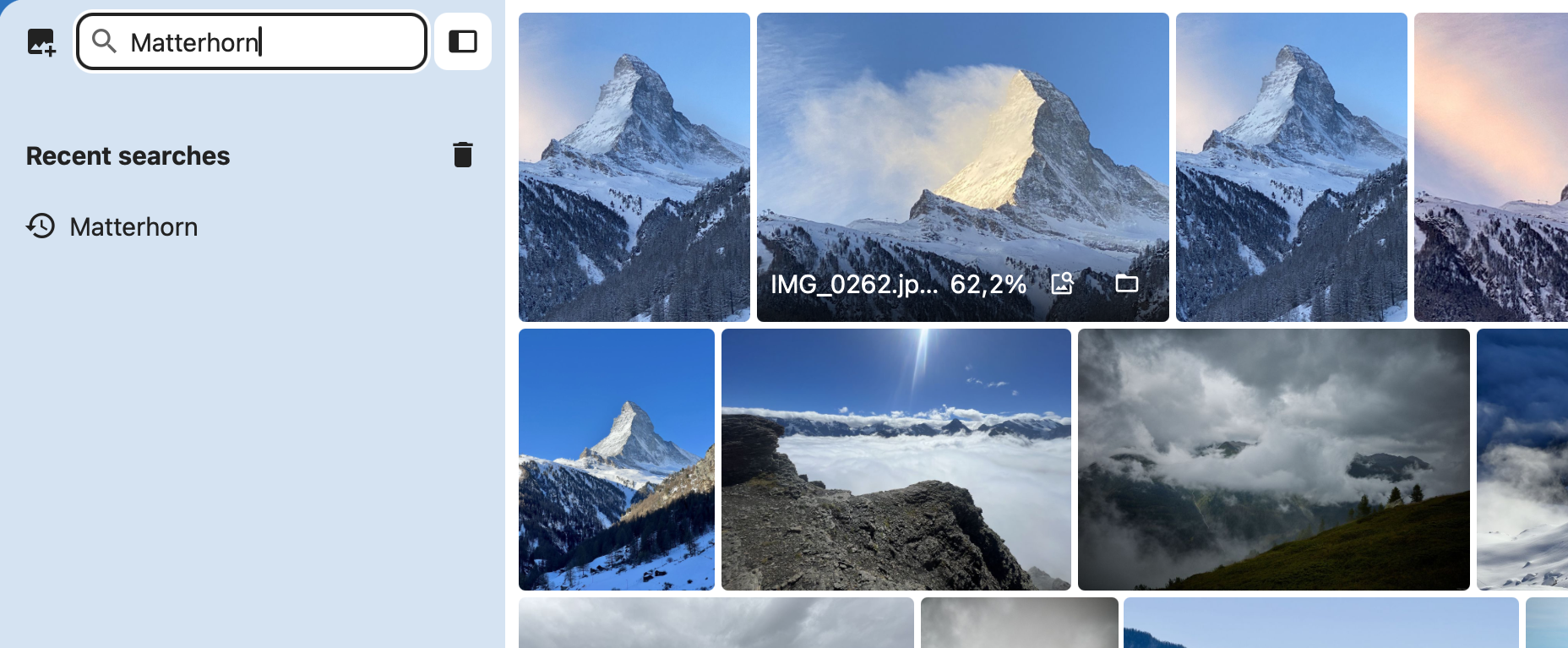
Search with a description
- Open the Media search app.
- Enter a description, for example “Matterhorn”.
- Run the search and open a relevant result.
Search with an image
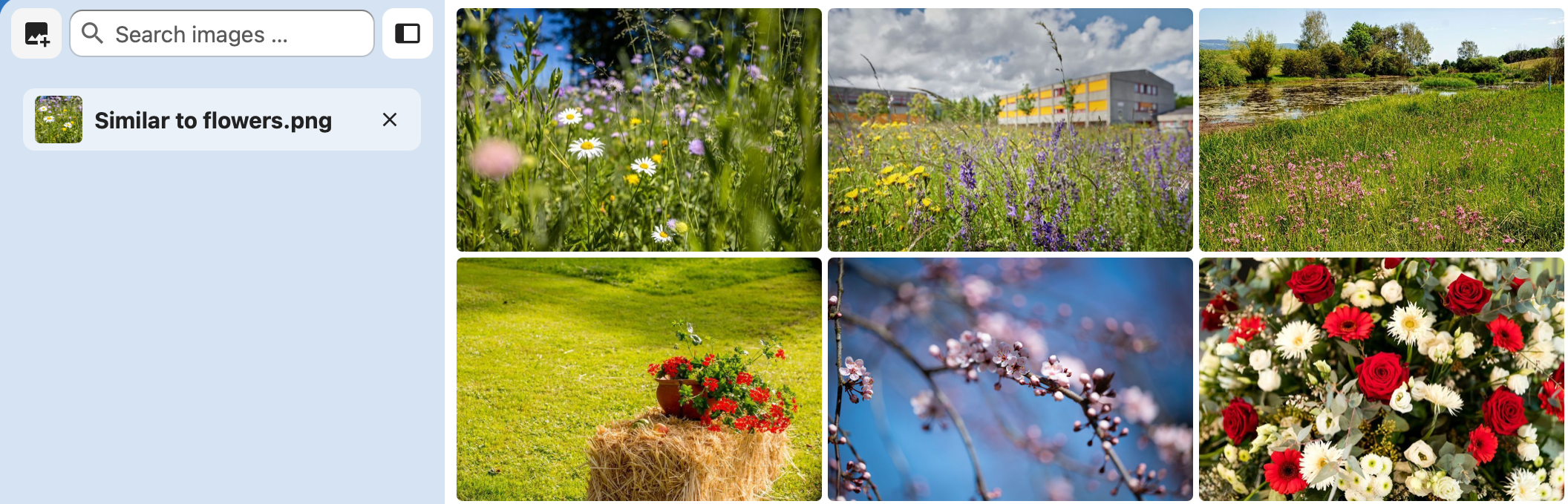
Click the image icon next to the search field or drag a reference image into the search. For example, use flowers.png to find similar images of flowers.
The reference image is used only for the search query and is not saved in your SHARE files.
Use the search results
You can open images in the preview, download them or use the folder icon to view them in their original location. You can also search for more similar images from a result.
You only see images you have access to. AI search results are suggestions: check that the image matches what you are looking for.
4. How do I search for files and document contents?
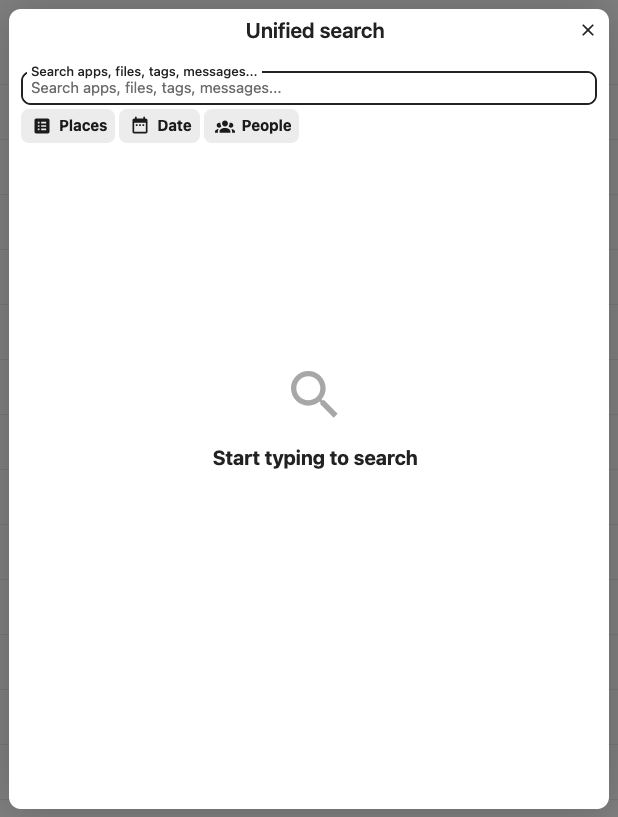
The Unified search at the top right is a separate search function. Use it to search filenames, tags and document contents. It also offers full-text search in PDF, Word and Excel files.

Open the search, enter your search term and select a relevant result. You only see content you have access to.
5. How do I use tags?
Use tags to label files and folders so you can find them more easily later.
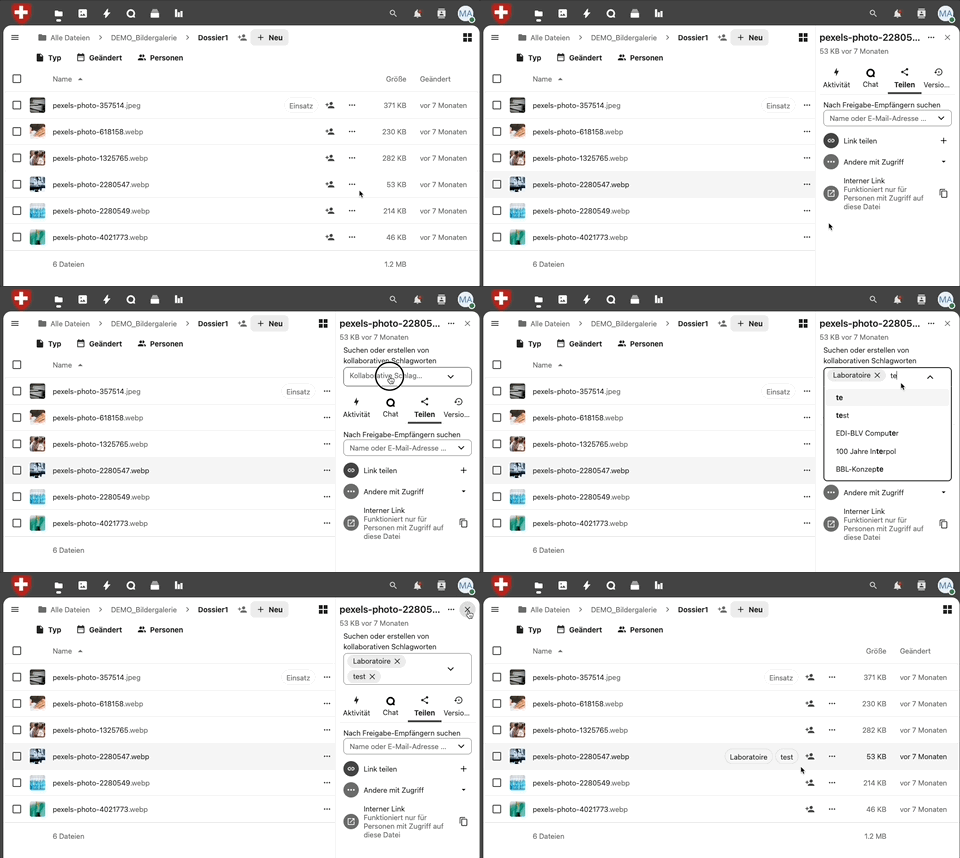
Tag multiple files
Select the files or folders you want. Open the three-dot menu at the top, choose Tags and assign the appropriate tags.
Filter by tags
Open Tags on the left and select the tags you want. With multiple tags, you can filter for “Project XY” and “Approval pending”, for example.
Tags are shared: people with access to the content see the same tags and can reuse them.
For detailed management of photos and videos with metadata, use the Photo Agency and the Video Agency.
Managing files and media
6. How do I create a project folder?
Open Files and select + → New folder. Enter a name and confirm creation.
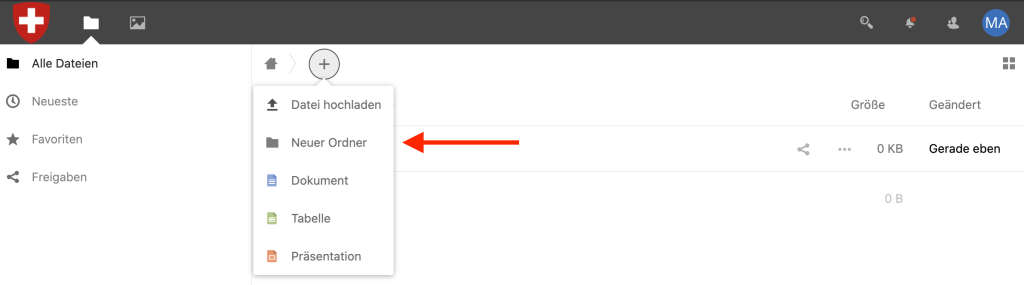
After ordering through FOITT, your organisation or team receives an official folder that is independent of personal accounts, with the agreed access rights.
7. How do I upload or download files?
Upload: open the folder you want. Select files using + or drag them into the file list.
Download: open the three-dot menu of a file or folder and select Download. Multiple selected items are bundled into a ZIP file.
8. Which file types can I upload, and when should I use ZIP?
In principle, you can store and download all file types on SHARE DMA. Whether you can view or edit a file directly in the browser depends on its format and the available apps. An individual file can be up to 500 GB.
Archive related data before uploading
We recommend packaging container files such as Lightroom libraries, website archives, databases and other collections of many related files into a ZIP or TAR archive before uploading:
- Uploading many small files is usually faster as an archive.
- Related files and directory structures stay together. This reduces the risk of incomplete or damaged datasets.
ZIP is suitable for straightforward sharing. TAR is an alternative for extensive directory structures. Upload the completed archive and extract it on your computer after downloading.
9. How much storage does my organisational unit have?
Your organisational unit has 5 TB of storage by default. An individual file can be up to 500 GB.
Storage can be expanded to 200 TB for a fee. Open the “Digital Asset Management” tile in the Digital Workplace portal and order a storage expansion.
10. How do I restore deleted files?
Open Deleted files at the bottom left of the file manager. Select the files or folders you want and click Restore.
11. How do I use SHARE DMA on a smartphone or tablet?
Install the Nextcloud app for iOS/iPadOS or Android.
When you first launch it, enter https://share.dma.swiss as the server address and sign in with your SHARE account.
You can upload and download files, make them available offline and share links.
Sharing and collaborating
12. How do I share files and folders securely?
You can share content with other people on SHARE DMA or make it available through a public link.
Share with people on SHARE DMA
- Open the sharing menu of the file or folder.
- Search for the person’s name or email address.
- Choose whether the person can only read the content or also edit it.
- Confirm the share.
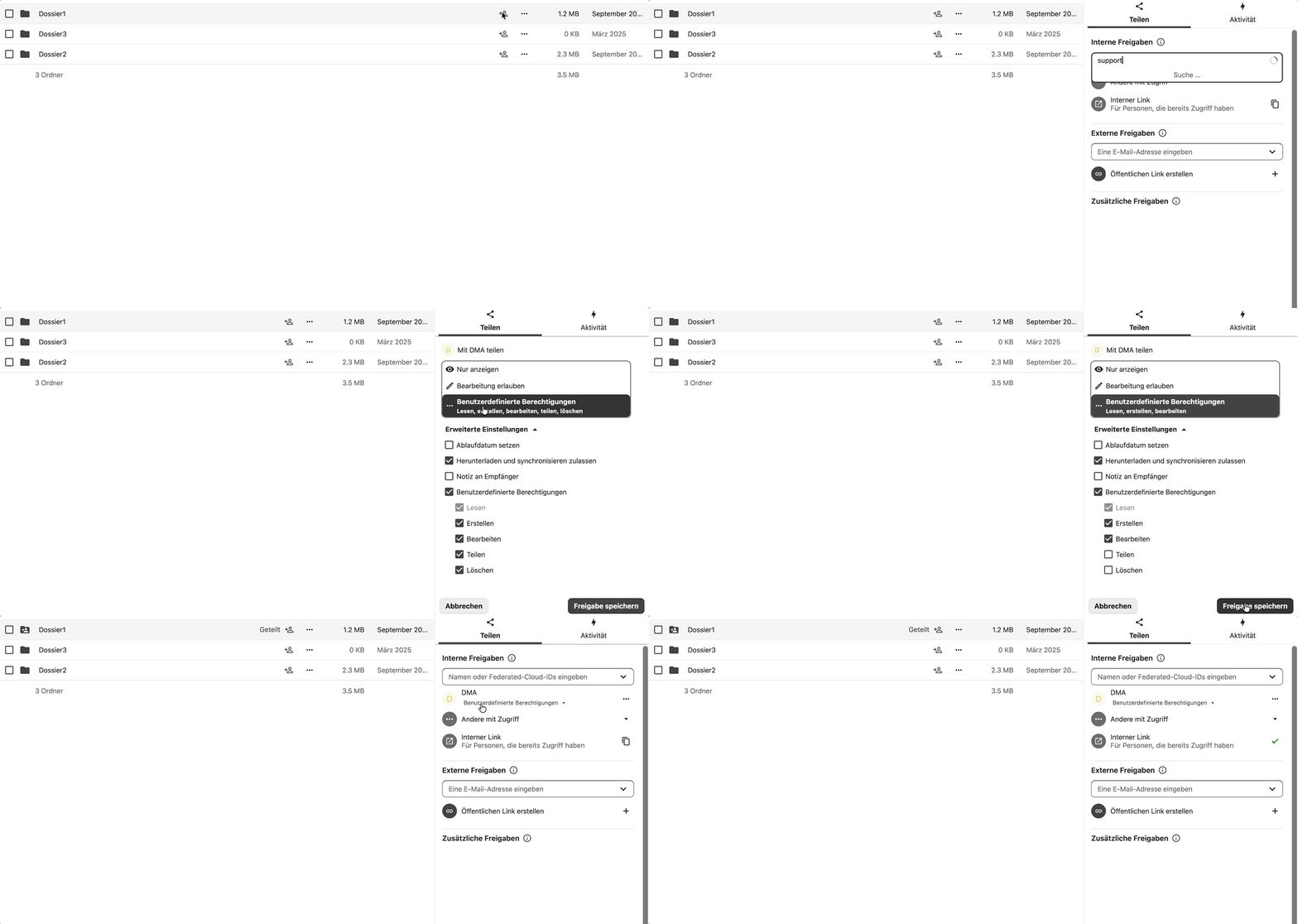
Send an internal link
If someone already has access, select “Copy internal link” in the sharing menu and send them the link. It contains /f/ followed by a number, for example https://share.dma.swiss/f/12345.
An internal link does not grant any additional rights. The person must be signed in and have permission to access the content.
Create a public link
Open the sharing menu, select “Share link” and copy the link. It contains /s/, for example https://share.dma.swiss/s/AbCdEfGh. If needed, set a password, adjust the expiry date or select “Hide download”.
Public links provide read-only access, even without a SHARE account. They are intended for short-term exchange and are valid for 14 days by default.
The link address may change after you change its settings. Check it and send it again if necessary. Send passwords separately.
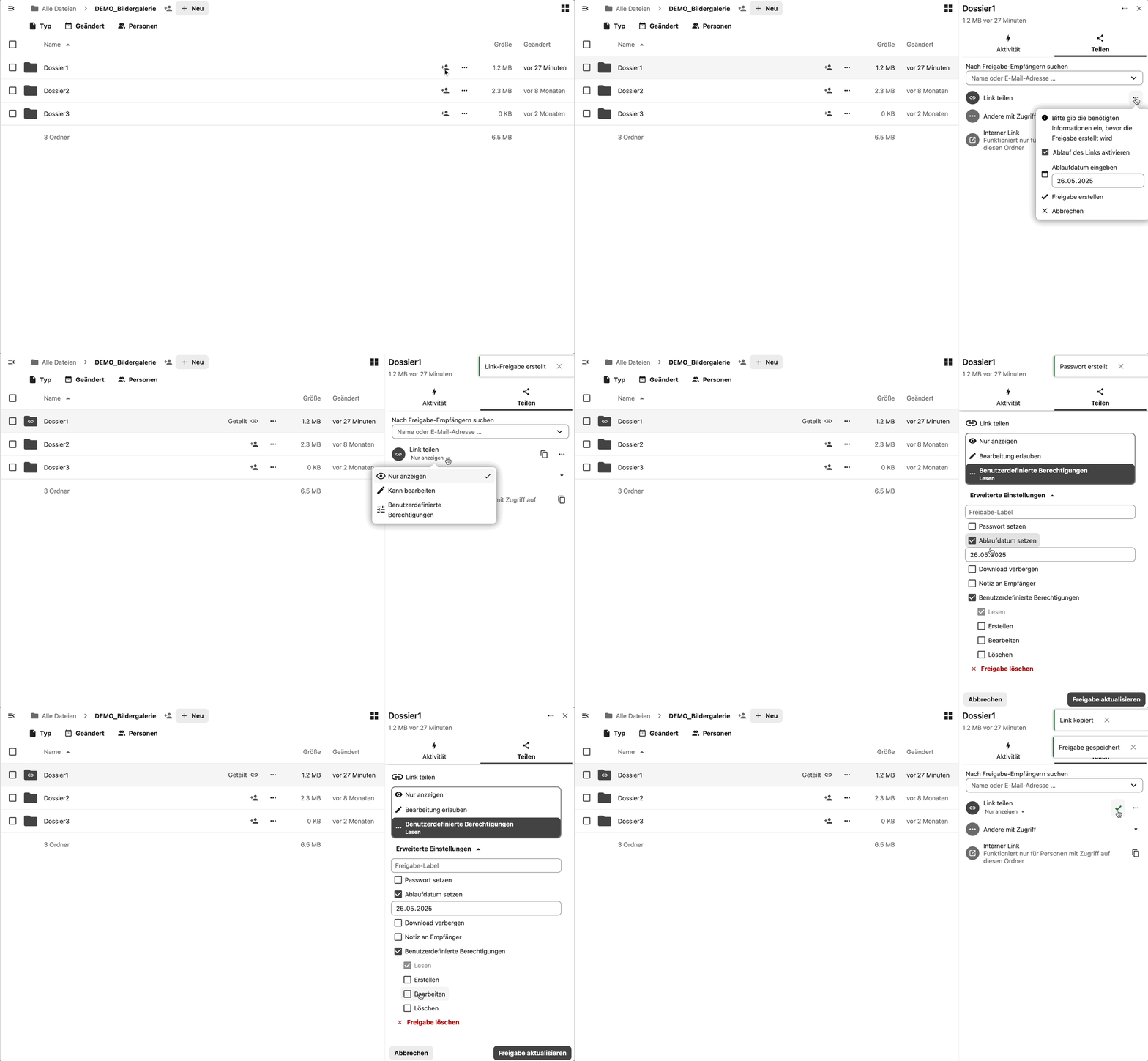
Permanent short links and QR codes
For permanent links to content and QR codes, you can request a team account on qr.dma.swiss.
Do not copy the browser URL! Always use the sharing menu to create a valid internal or public link.
13. How do I edit Office documents together with others?
Click a Word, Excel or PowerPoint file. It opens in OnlyOffice, directly in the browser.
Everyone involved needs a SHARE account and write access to the file to edit it together. You can work at the same time, track changes and leave comments.
14. What other collaboration tools are available?
Alongside files and Office documents, you have Whiteboard, Deck and Notes.
Whiteboard – visualise ideas together
Create a whiteboard file using New → New whiteboard. Share it with the people you want and grant write access. You can create sketches, workflows and diagrams at the same time.
Deck – organise team tasks
Use Deck to organise tasks on a board. Create lists and cards for individual tasks, then share the board with your team. Move cards between lists to show progress.
Notes – record ideas and information
Open Notes and select New note. Your changes are saved automatically. Categories and favourites help you keep track.
Format text with Markdown
You can use Markdown in Notes and in Deck card descriptions:
| Input | Display |
|---|---|
# Heading | Heading |
**Important** | Important |
*Note* | Note |
- Item | Bullet list |
- [ ] Task | Open task |
- [x] Task | Completed task |
[DMA](https://www.dma.swiss) | Link to the DMA website |
Account and security
15. How do I enable two-factor authentication?
Two-factor authentication (MFA) protects your account in addition to your password. When signing in, you enter a time-limited code from an authenticator app.
Set up MFA
- Open your profile picture or initials at the top right.
- Select Personal settings → Security.
- Under Two-factor authentication, open TOTP (Authenticator app).
- Scan the displayed QR code with your authenticator app.
- Enter the current code from the app and confirm setup.
16. How do I transfer files and folders before closing my account?
- Open Personal settings → Sharing.
- Under Files, click “Choose a file or folder to transfer”.
- Select the content you want and confirm with Choose.
- Under New owner, enter the name of the person you want.
- Click Transfer.
The recipient receives a notification and must accept the transfer. The content, including existing shares, is then transferred to their account.
Troubleshooting and help
17. SHARE DMA is not working – what can I check myself?
If content is missing, sign-in fails or functions do not respond, these steps often help:
- Reload the page: press
Ctrl + Ron Windows orCmd + Ron a Mac. - Sign in again: sign out of SHARE DMA, then sign back in.
- Clear browser data: in your browser settings, delete the cache and cookies for share.dma.swiss. Then sign in again. This may remove local website settings.
- Try another browser: check whether the problem also occurs in another browser.
Where can I get help?
Contact the FOITT Service Desk (+41 58 465 88 88) at any time with your questions.
State the affected function and the exact error message. A screenshot can help. Do not send passwords or sign-in codes.
Costs and ordering
18. How much does SHARE DMA cost?
Use is free for Defence Group staff and members of the Armed Forces.
Official FOITT prices apply to other organisations. You can find them in the DAM price list on the intranet.
19. Order
You can order the media production platform here for your team.